
PiKVM (Raspberry Pi KVM) is an open-source hardware and software solution that allows you to control a computer...
Latest posts
-
 What Is PiKVM? A Complete Guide to Remote Computer ManagementRead more
Blog categories
Search in blog
Archived posts
What Is PiKVM? A Complete Guide to Remote Computer Management
What Is PiKVM?
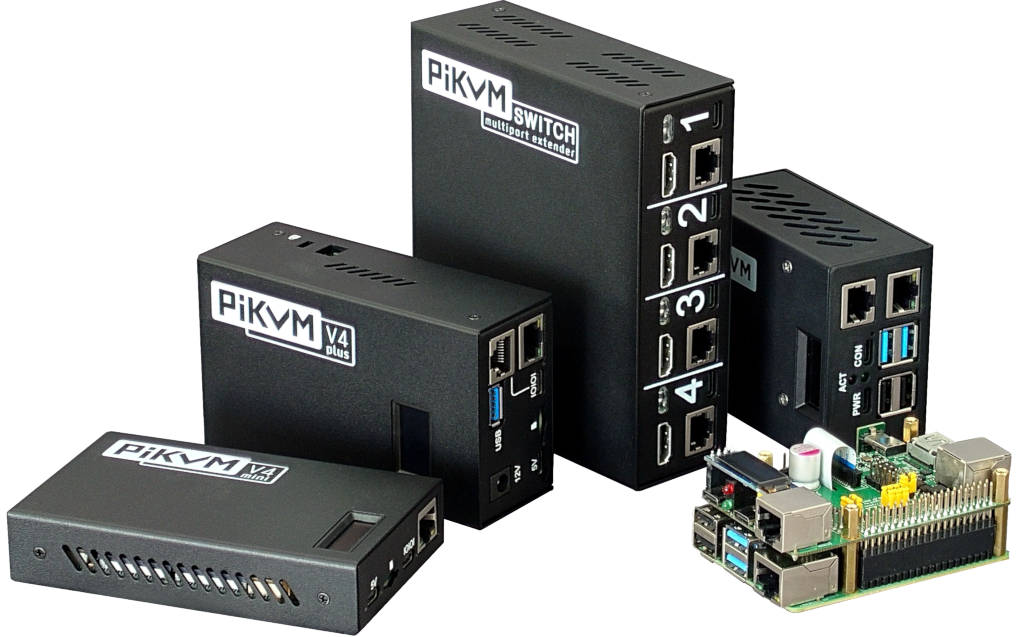
PiKVM (Raspberry Pi KVM) is an open-source hardware and software solution that allows you to control a computer remotely over the internet or local network. It works like a traditional KVM (Keyboard, Video, Mouse) device but is built using a Raspberry Pi.
With PiKVM, you can access another computer’s screen, keyboard, and mouse even when that computer is powered off, frozen, or has no operating system installed. This makes PiKVM very useful for IT professionals, system administrators, developers, and home users.
Unlike normal remote desktop software, PiKVM works at the hardware level. This means you can access BIOS and UEFI settings, install operating systems remotely, fix system crashes, and restart systems without being physically present.
PiKVM uses HDMI capture to get video output and USB emulation to send keyboard and mouse input. It also supports virtual media, allowing users to mount ISO files remotely.
Because it is open-source, PiKVM is secure, customizable, and affordable compared to commercial KVM solutions.
Material List for Building PiKVM
Note: All ingredients are available at BahawalStore.
1. Raspberry Pi Board
- Raspberry Pi 4 (Recommended)
- Raspberry Pi Zero 2 W (Optional)
2. MicroSD Card
- Minimum 16GB storage
- Class 10 or higher
3. HDMI Capture Card
- USB HDMI capture device
- Supports 1080p input
4. USB Cable
- USB-A to USB-C or Micro-USB
- Used for keyboard and mouse emulation
5. Power Supply
- 5V 3A power adapter
- Stable power source
6. Network Connection
- Ethernet cable (Recommended)
- Wi-Fi (If supported)
7. OTG Adapter (If Required)
- Used for USB connection on some Raspberry Pi models
8. Case and Cooling (Optional)
- Raspberry Pi case
- Cooling fan or heatsink
9. HDMI Cable
- Connects target computer to capture card
Optional Accessories
- External USB Storage
- LCD Display
Next Step: Download and Install PiKVM OS
After understanding what PiKVM is and gathering the required materials, the next step is to install the PiKVM operating system on your Raspberry Pi.
First, visit the official PiKVM documentation website and download the latest PiKVM OS image from the following link:
https://docs.pikvm.org/flashing_os/
From this page, select the correct image file according to your Raspberry Pi model and download it to your computer.
Make SD Card Bootable Using Raspberry Pi Imager
After downloading the PiKVM image, you need to write it to your microSD card using Raspberry Pi Imager.
- Download and install Raspberry Pi Imager on your computer.
- Insert the microSD card into your system.
- Open Raspberry Pi Imager.
- Click on “Choose OS” and select the downloaded PiKVM image.
- Click on “Choose Storage” and select your SD card.
- Press “Write” to start the process.
Wait until the writing process is completed. Once finished, safely remove the SD card and insert it into your Raspberry Pi.
Need Help?
If you face any difficulty during installation, setup, or configuration of PiKVM, you can contact us for guidance and support.
Our team is always ready to help you in setting up your remote management system successfully.
Feel free to reach out to us for technical assistance, troubleshooting, or customization support.
Video https://youtube.com/shorts/G_7hZAoFrNE?si=p5O-yX2tn4aGdyh3
Conclusion
PiKVM is a powerful and affordable solution for remote computer management. It provides full hardware-level control without expensive equipment. With basic components and proper setup, anyone can build a professional remote access system.
It is ideal for server management, troubleshooting, home labs, and learning purposes.
Posted in:
Raspberry Pi
Leave a comment